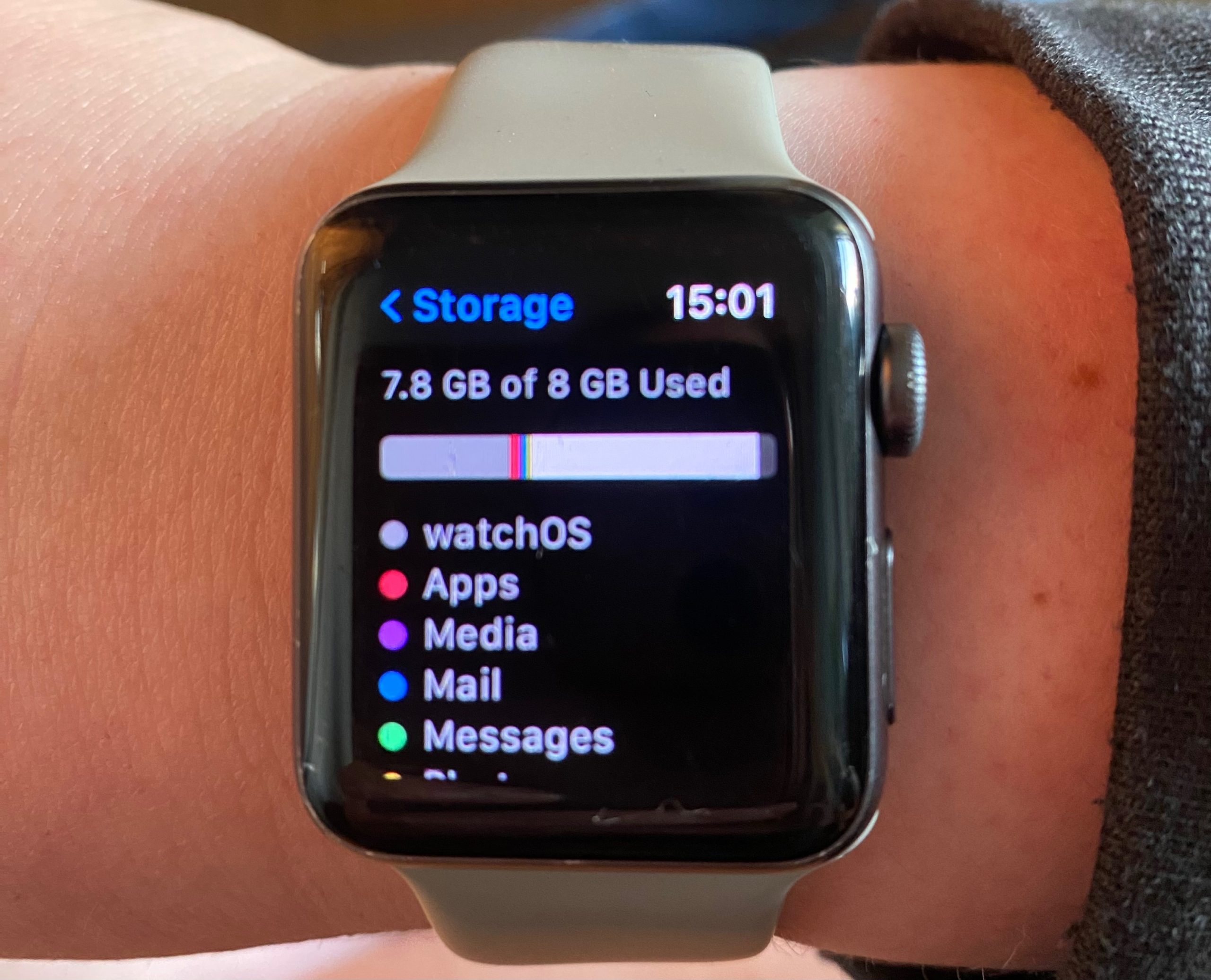
Your Apple Watch has limited storage compared to your iPhone or iPad. The amount depends on the model. The Series 10, Series 9, and Ultra 2 provide 64GB, while the Ultra, Series 8, 7, 6, 5, SE, and SE 2 include 32GB. The Series 4 and Series 3 GPS + Cellular offer 16GB, and the Series 3 GPS has just 8GB.
However, you can’t use all of that space for media. Apple sets limits: models with 64GB allow up to 16GB for music, podcasts, and audiobooks, while 32GB models permit only 8GB for media. Depending on your usage, you may run low on space quickly. Fortunately, you can check storage and clear out apps and files to regain capacity.
Check Storage Space
On your iPhone, open the Watch app and go to My Watch > General > About. This shows your total songs, photos, apps, and available space. On the watch itself, go to Settings > General > Storage to see used and available storage, plus details on which apps and content take up the most space.
Remove Apps
To delete apps from your iPhone, open the Watch app, scroll to Installed on Apple Watch, tap an app, and turn off Show App on Apple Watch. On the watch, press the Digital Crown, long press any icon in Grid View, and tap the X to remove. In List View, swipe an app left and tap the trash can icon.
Remove Music
On your iPhone, go to the Watch app > Music. Turn off Recent Music to stop auto-syncing. Tap Edit to delete specific albums or playlists. On your watch, open the Music app, swipe to find an album, then choose Delete from Library and confirm.
Remove Audiobooks and Podcasts
For audiobooks, open the Watch app > Audiobooks. Turn off Reading Now and Want to Read to prevent auto-sync. Swipe left on a synced audiobook and tap Delete. For podcasts, go to Watch app > Podcasts. Adjust the Up Next or Saved settings to reduce stored episodes. You can also remove entire shows.
Manage Photos
In the Watch app > Photos, adjust sync settings. Switch the album or reduce the number of synced photos. You can lower the sync limit to as few as 25 photos to save space.
Last Resort: Unpair and Repair
If storage remains tight, unpair and repair your watch. In the Watch app, tap All Watches, select your device, and choose Unpair Apple Watch. After unpairing, bring your iPhone near the watch and follow the prompts to pair again.
Conclusion
The Apple Watch storage space varies by model, but media limits mean you may run out sooner than expected. By checking usage, deleting unnecessary apps and files, and adjusting sync settings, you can keep your watch running smoothly.
READ: Top Crossbody Bags for 2025: Stylish & Practical Picks