Your Android TV can do more than stream standard channels—it gives you access to a wide range of apps. Whether you want streaming platforms, games, or productivity tools, the process is straightforward. Here’s how you can install apps on Android TV quickly and safely.
Use Google Play Store
- Turn on your Android TV and make sure it is connected to the internet.
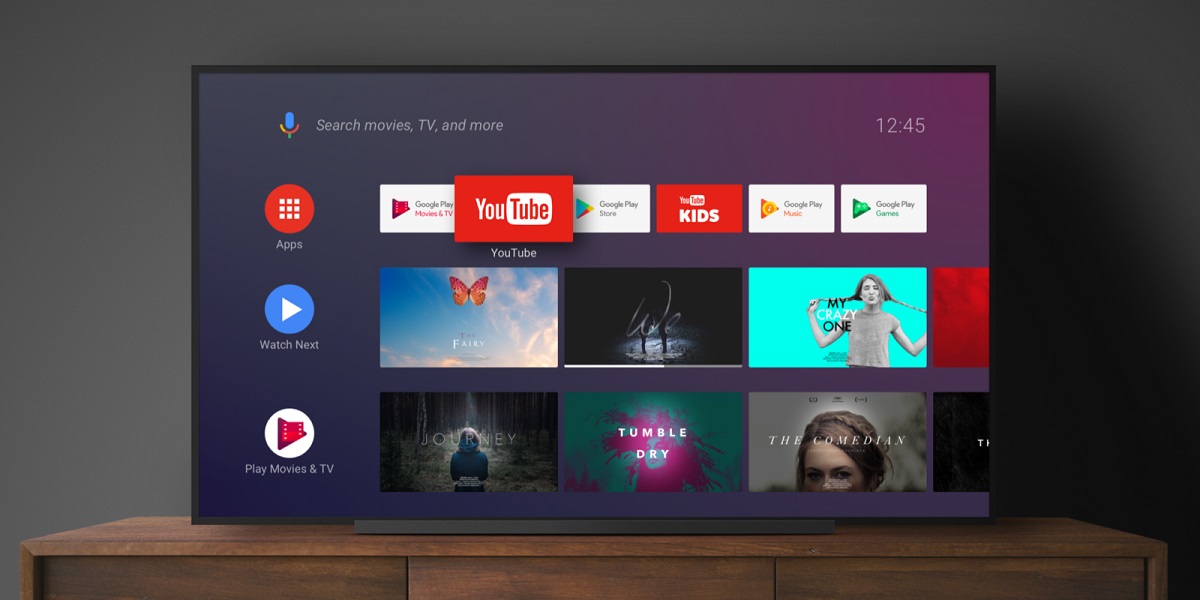
- On the home screen, scroll to and open the Google Play Store.
- Use the search bar or browse categories to find the app you want.
- Select the app and choose Install.
- Once installed, the app appears in your apps list, ready to launch.
Use Voice Commands
If your Android TV remote supports Google Assistant:
- Press the Google Assistant button on your remote.
- Say the name of the app you want to install, for example: “Install YouTube Kids”.
- The TV will take you directly to the app page in the Play Store.
- Select Install to add it to your device.
Sideload Apps
Sometimes, the app you need may not be available in the Play Store for Android TV. In that case, you can sideload apps:
- On your computer, download the APK file for the app you want.
- Transfer the file to a USB drive or use a file-sharing service.
- Plug the USB drive into your Android TV or open your file manager app.
- Locate the APK file and select it to begin installation.
- Confirm permissions and complete the process.
Note: Always download APKs from trusted sources to avoid security risks.
Update and Manage Apps
To keep apps working smoothly:
- Open the Google Play Store > Manage Apps.
- Choose Update when available.
- You can also uninstall apps here to free up space.
Conclusion
Learning how to install apps on Android TV expands your device’s potential. Whether through the Play Store, voice commands, or sideloading, you can customize your TV with the apps you need. Keep apps updated for the best experience.