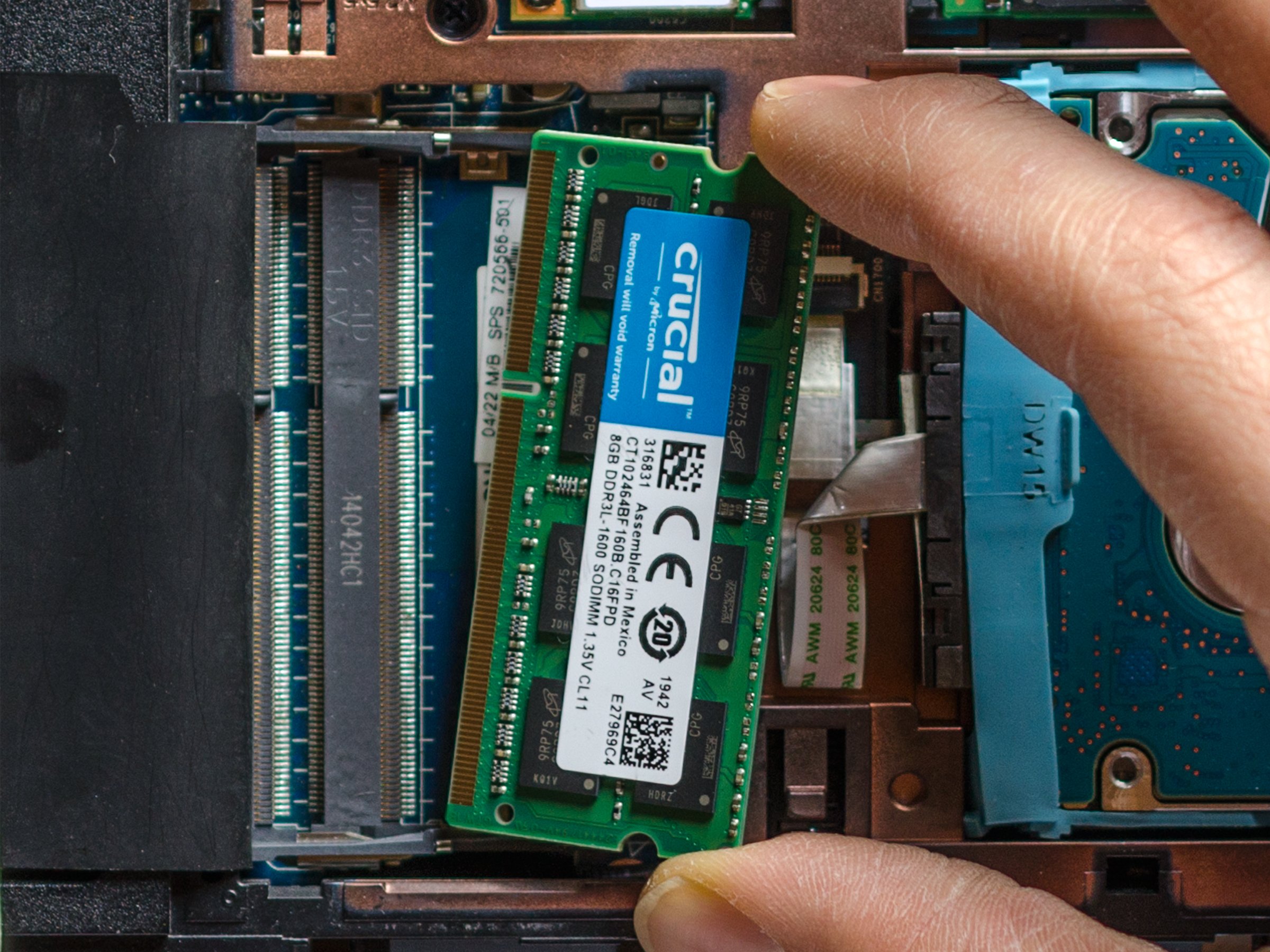
Upgrading your computer’s memory can dramatically improve speed and performance. Whether you are using a desktop or a laptop, learning how to change RAM in computer systems is a simple process if you follow the right steps. Below is a complete guide with safety tips and verification methods to ensure a smooth upgrade.
Step 1: Check Compatibility
- Identify the RAM type your computer supports (DDR3, DDR4, or DDR5).
- Determine if your device uses DIMMs (desktop) or SO-DIMMs (laptops).
- Verify the maximum supported capacity and number of slots in your motherboard or laptop.
- For best results, install RAM in matched pairs to enable dual-channel performance.
Step 2: Gather Tools
- Compatible RAM sticks.
- A small Phillips screwdriver.
- An anti-static wrist strap or touch a grounded metal surface often.
- Your device’s manual or service guide.
Step 3: Power Down Safely
- Back up important files.
- Shut down the computer and unplug it.
- Hold the power button for 10–15 seconds to discharge residual power.
- Disconnect all peripherals.
Step 4: For Desktops
- Open the side panel of the tower.
- Locate the RAM slots beside the CPU.
- If replacing old sticks, push both latches outward and pull the modules straight out.
- Align the notch of the new stick with the slot.
- Press firmly until both latches click back into place.
- For two sticks, use the recommended slots (often A2 and B2).
Step 5: For Laptops
- Remove the battery if possible.
- Unscrew the back panel or service hatch.
- Release the clips on the SO-DIMM, allowing it to pop up.
- Slide the RAM out at a 30° angle.
- Insert the new RAM at the same angle and press down until the clips snap back.
- Reattach the panel and battery.
Step 6: Verify Installation
- Boot into BIOS/UEFI and check memory capacity and speed.
- In Windows, open Task Manager → Performance → Memory.
- On macOS, go to About This Mac → Memory.
- Run a memory test (MemTest86 or Windows Memory Diagnostic) for stability.
Step 7: Troubleshooting
- If the PC does not boot, reseat the modules.
- Check if RAM is placed in correct slots.
- Update BIOS/UEFI if new modules are not detected.
- Avoid mixing RAM kits of different speeds or voltages.
By following these steps, you can successfully change RAM in computer systems, making them faster and more responsive.